Introduction
Void Video captures a live source through a supported capture device, processes each frame on the GPU, and sends the result to your theater display or projector.
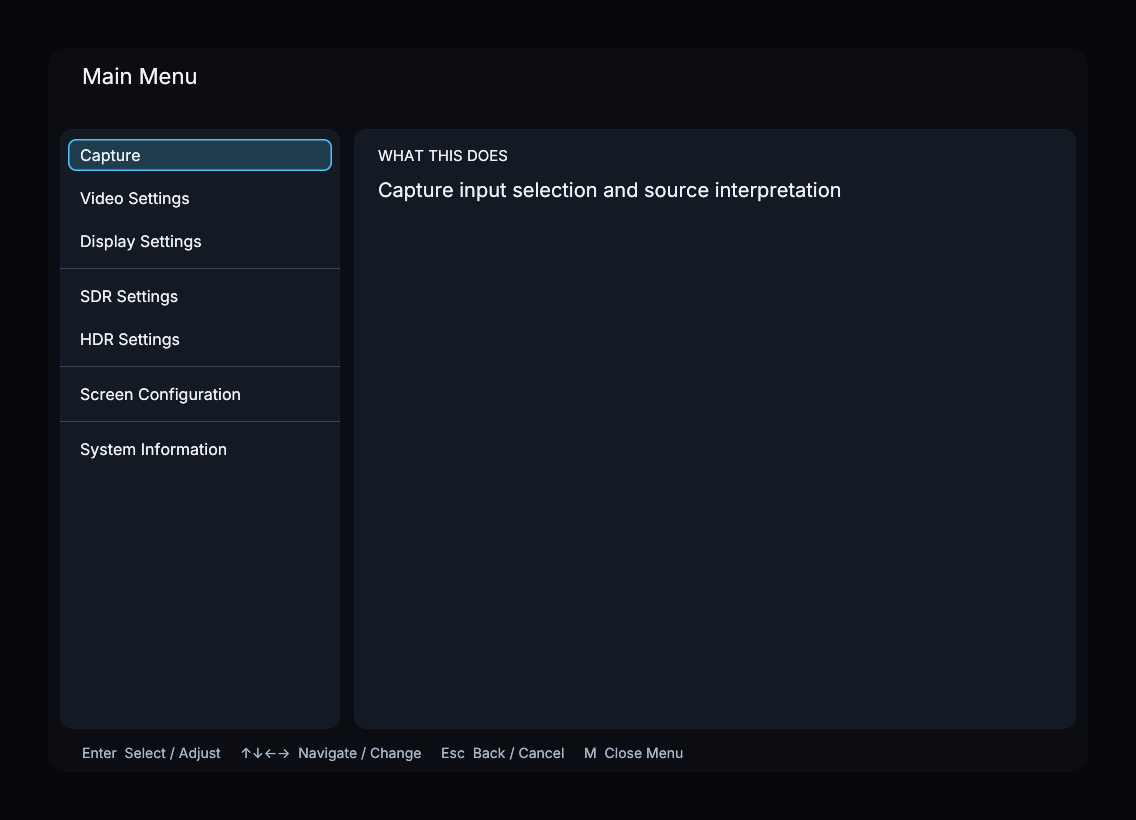
What you can configure
| Menu | Purpose |
|---|---|
| Video Settings | Scaling, frame mixing, debanding, dithering, and related image-processing controls |
| Display Settings | Output mode, refresh-rate matching, HDR output, and colorspace where supported |
| SDR Settings | Output gamut and transfer function for SDR |
| HDR Settings | Tone mapping, gamut mapping, output color, and LLDV detection |
| Screen Configuration | Physical screen shape, A-Lens behavior, frame alignment, Fit, Zoom/Crop, NLS, and named presets |
| System Information | Network access, software updates, hardware information, and support tools |
The on-screen interface is designed for a keyboard or remote. The same processor state is also available through the built-in web interface.
Start here
- Install Void Video, including the Windows or Linux setup steps for your DeckLink or Magewell card. New to Linux? Start with the Debian walkthrough.
- Connect and verify a source.
- Learn the menu controls.
- Configure the physical screen and content presentation.
- Use the settings reference when you need an individual control.
Linux support
Coming from Windows? Start with Install Debian 13. No previous Linux experience is required. Then follow Graphics Drivers for your card and, once you have a working picture, Automatic Startup.
The installation walkthrough links to the Linux setup instructions for both DeckLink and Magewell capture cards.
Linux Utilities covers connecting from Windows with SSH and checking CPU, memory, and GPU usage.